> ## Documentation Index
> Fetch the complete documentation index at: https://docs.tryarchitect.com/docs/llms.txt
> Use this file to discover all available pages before exploring further.
# How to Integrate Leads into HubSpot
> Send Architect form submissions into HubSpot
## Prerequisites
Before you start, make sure you have:
* Access to your **HubSpot** account
* Access to the **Architect** platform (app.tryarchitect.com)
* A HubSpot form created or ready to create
* Complete Steps 1-3 before setting up the HubSpot connection in [Step 4](#step-4-set-up-connection)
## How it works
When a visitor lands on your Architect page, the HubSpot tracking script drops a cookie (`hutk`) on the visitor. When that visitor submits a form, Architect sends the form data along with the tracking cookie to HubSpot via the [HubSpot Forms API](https://developers.hubspot.com/docs/api/marketing/forms). HubSpot then associates the submission with the visitor's browsing activity, giving you full attribution on the contact.
## Step 1: Find Your HubSpot Account ID
You need your HubSpot account ID so Architect can connect your form submissions to the correct HubSpot account. HubSpot may also refer to this as your **Hub ID** or **Portal ID**.
In HubSpot, click your account name in the upper-right corner. In the dropdown, you will see your **Hub ID**.
You can also find it in the HubSpot URL. For example, in `app.hubspot.com/contacts/123456789/all`, the account ID is `123456789`.
## Step 2: Create or Choose an Existing Form in HubSpot
You need a HubSpot form so you can match the Architect form with HubSpot and paste the values into the existing fields.
In HubSpot, go to **Marketing** and then **Forms**. Select your form, then click **Share** and **Embed code**.
Copy the embed code and look for the `data-form-id` value. This is your **HubSpot form ID**.
The embed code will look something like this:
```html theme={null}
```
The `data-portal-id` is your account ID and the `data-form-id` is your form ID.
For each field on your form, note the **Internal Name**. This is how you match the fields with Architect's form. Click a field to see its internal name under the property settings.
Common default internal names:
| Field | Internal Name |
| ---------- | ------------- |
| Email | `email` |
| First Name | `firstname` |
| Last Name | `lastname` |
## Step 3: Create a Form in Architect
In Architect, go to the designated page, then click **Manage**, **Settings**, and **Conversion Action**. Go to **Forms** and then **Manage Forms**. Create a new form or choose an existing one.
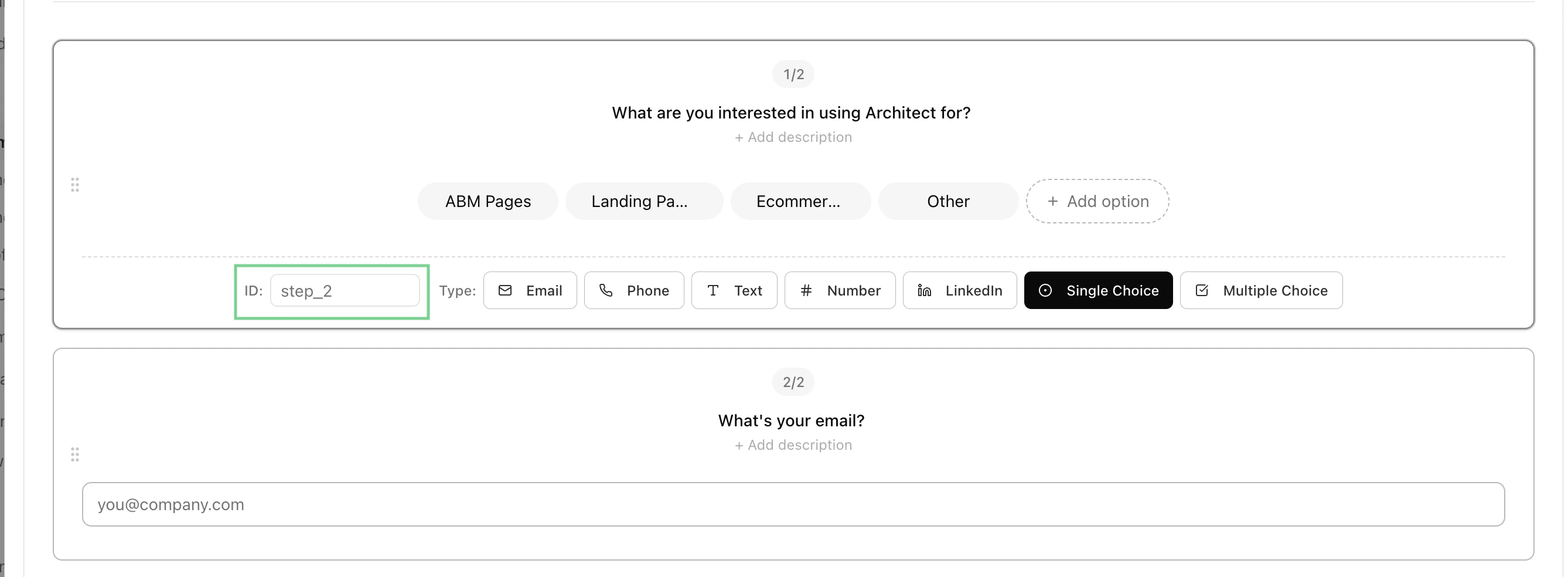
Match this form to the same fields as your HubSpot form. Make sure the Architect ID is the same as the internal names in HubSpot, as this is how the fields are matched when the submission is sent.
 ## Step 4: Set up Connection
In Architect, go to **Scripts** and then **Connections**. Create a new connection for **HubSpot**.
Paste your **HubSpot account ID** and **HubSpot form ID** into the connection setup and save it.
## Step 5: Test
Submit a test submission on that page group in Architect, then check HubSpot to make sure the submission was passed through successfully.
## Related topics
- [Scripts](/docs/overview/integrations/scripts.md)
- [How does Architect Cookie Consent Banner work?](/docs/overview/faq/how-does-architect-cookie-consent-banner-work.md)
- [Changelog](/docs/changelog.md)
- [How to add Form Submission into your Marketo (Through Zapier)](/docs/overview/integrations/how-to-add-form-submission-into-your-marketo-through-zapier.md)
- [How to Track Form Submissions with Google Tag Manager](/docs/overview/for-ads/how-to-track-form-submissions-with-google-tag-manager.md)
## Step 4: Set up Connection
In Architect, go to **Scripts** and then **Connections**. Create a new connection for **HubSpot**.
Paste your **HubSpot account ID** and **HubSpot form ID** into the connection setup and save it.
## Step 5: Test
Submit a test submission on that page group in Architect, then check HubSpot to make sure the submission was passed through successfully.
## Related topics
- [Scripts](/docs/overview/integrations/scripts.md)
- [How does Architect Cookie Consent Banner work?](/docs/overview/faq/how-does-architect-cookie-consent-banner-work.md)
- [Changelog](/docs/changelog.md)
- [How to add Form Submission into your Marketo (Through Zapier)](/docs/overview/integrations/how-to-add-form-submission-into-your-marketo-through-zapier.md)
- [How to Track Form Submissions with Google Tag Manager](/docs/overview/for-ads/how-to-track-form-submissions-with-google-tag-manager.md)